In this article
You ran an accessibility scan and now you have a score and a list of issues. What do they mean, and where do you start? This guide explains what a scan actually measures, how to work through the results, and what you still have to check yourself. It is general information, not legal advice.
What an automated scan really does
A scanner reads the page and tests it against a fixed list of rules that a program can decide on its own. For example, “this image has no alt attribute” is a yes or no question. “This alt text describes the image well” is not, because that needs a person.
The browser-based scan in AccessIQ looks for these problems:
- images with no
altattribute - form fields without a label
- empty links, and links with vague text such as “click here”
- a missing
langattribute on the page - empty headings and skipped heading levels
- buttons with no accessible name
- duplicate IDs
- a missing page title
- text whose colour contrast is below 4.5:1
If you choose WCAG 2.2, there are extra warnings for things like sticky elements that may cover a focused control, draggable elements with no alternative, and very small click targets. That is a useful list, but it is only a part of WCAG.
What the score means
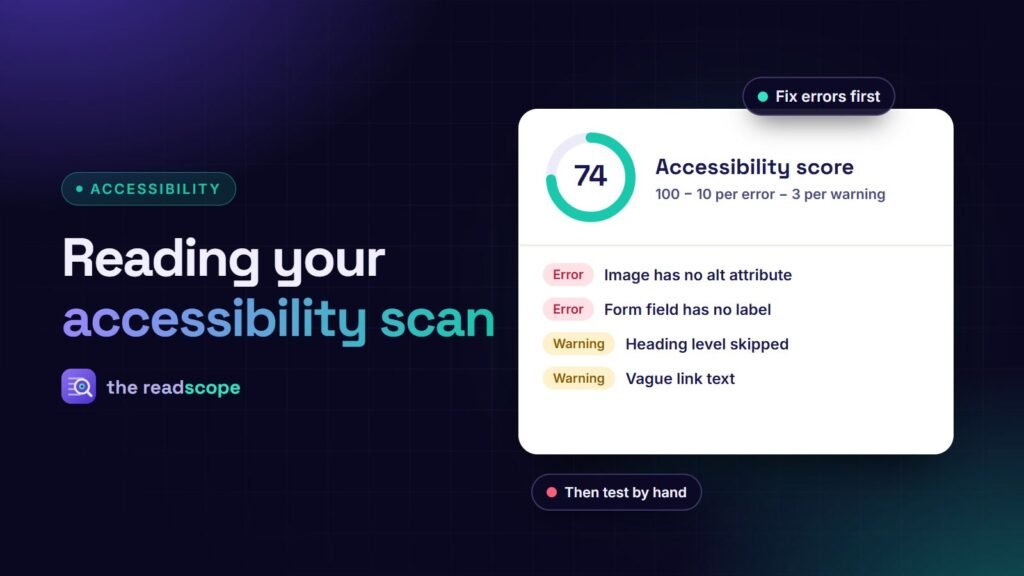
Scanners turn the findings into one number to make progress visible. In AccessIQ, the score is 100, minus 10 for every error and 3 for every warning, with a floor of 0. So a page with two errors and four warnings scores 68.
Keep three things in mind:
- It is a trend, not a grade. Compare a page with itself over time. A page that went from 54 to 90 has clearly improved. Comparing your score with someone else’s, using another tool, tells you little.
- Different tools count differently. Each tool has its own rules and its own formula, so the numbers do not match.
- A low number can be one mistake. One broken template element repeated across the page can cost many points. Fixing it in one place can lift the score a lot.
The order to fix things in
- Errors before warnings. Errors are things that are definitely wrong, such as a missing label. Warnings are things to look at, such as a skipped heading level, which is sometimes intentional.
- Templates before pages. If the same issue appears on every page, it comes from your theme or a plugin. Fix it once in the template, not 40 times in content. A missing
langattribute or an unlabelled search box are typical examples. - Barriers before polish. A form that cannot be completed matters more than a heading that skips a level. Start with anything that stops someone from reading, navigating or submitting.
- Content last. Missing alt text and vague link text need a person to write something good. Our guides on How to write alt text that actually helps (with examples) and Accessible forms in WordPress: labels, errors and required fields show how.
Scan more than one page
Do not stop at the home page. Scan one page of each kind: the home page, a blog post, a page with a form, a page with a table or a long list, and the checkout or booking page if you have one. Each uses different parts of your theme and different plugins, so each can hide different problems.
After every change, scan again. AccessIQ keeps a history for each URL and draws a score chart, so you can see whether a change helped. If a change made it worse, you will know straight away.
What no scanner can check
This is the important part. Even with a perfect score, you still need to check:
- Whether alt text is useful. A scanner sees that
alt="image"exists. It cannot see that the image is a chart and the alt text should state the finding. - Keyboard use. Can you reach everything with Tab, see where you are, and get out of menus and dialogs? Our The 10-minute keyboard test every WordPress site should pass takes ten minutes.
- Screen reader use. Does the page make sense when read aloud? Try NVDA on Windows or VoiceOver on a Mac.
- Zoom and small screens. At 200% zoom and on a phone, does anything overlap or disappear?
- Captions and transcripts for video and audio.
- Plain, clear writing and error messages that say how to fix the problem.
- Contrast that a scanner cannot measure, such as text over a photo or a gradient. See Color contrast on WordPress: ratios, tools and easy fixes.
Automated tools detect only part of the problems on a page. Treat a scan as the first pass that clears the obvious issues, and manual testing as the second pass that finds the rest.
A simple routine
- Scan your key pages and write down the scores.
- Fix template-level errors first, then re-scan.
- Fix the remaining errors, then the warnings worth fixing.
- Do the keyboard and screen reader checks by hand.
- Publish an honest accessibility statement that says what you checked, when, and how to report a problem. See How to write an accessibility statement for your website.
- Repeat after every theme or plugin update, and on a schedule.
Be careful with promises. An automated scan, a score or a widget cannot make a site compliant, which is why Accessibility overlays vs real fixes: what actually works is worth reading before you buy any quick fix. If you are working towards a legal deadline, see European Accessibility Act: what WordPress site owners need to know, and take advice from a qualified professional.
The free AccessIQ plugin runs these scans on your own pages, keeps the history on your own server and shows the exact element behind each issue. Use it to find the obvious issues quickly, so that your manual testing time goes to the things only a person can judge.
Frequently asked questions
What does an accessibility score of 80 mean?
It means the automated checks that ran found some problems and took points off. In AccessIQ the score is 100 minus 10 for each error and 3 for each warning, never below 0. It reflects only the automated checks, not full WCAG conformance.
Does 100/100 mean my site is accessible?
No. It means the automated checks found nothing to report. They cannot judge whether alt text is meaningful, whether focus order makes sense, or whether a form can be completed with a screen reader.
How many pages should I scan?
One of each kind of page: the home page, a blog post, a page with a form, and any checkout or booking page. Most problems come from templates, so the same fix clears many pages.
Can a scanner make my site legally compliant?
No. A scan is a useful input, but it cannot prove conformance with WCAG or any law. For legal questions, speak to a qualified adviser.
Does the free AccessIQ scanner check other people's websites?
No. The free scanner checks pages on your own site only.