In this article
- Before you look: set up the view
- Five patterns and what to do about each
- 1. Your main button gets almost no clicks
- 2. People click on something that is not a link
- 3. One menu item takes most of the clicks
- 4. Mobile and desktop disagree
- 5. Clicks pile up in a spot with no obvious target
- Check that a change worked
- When visitors are most active
- Be honest about the limits
- Keeping the data private
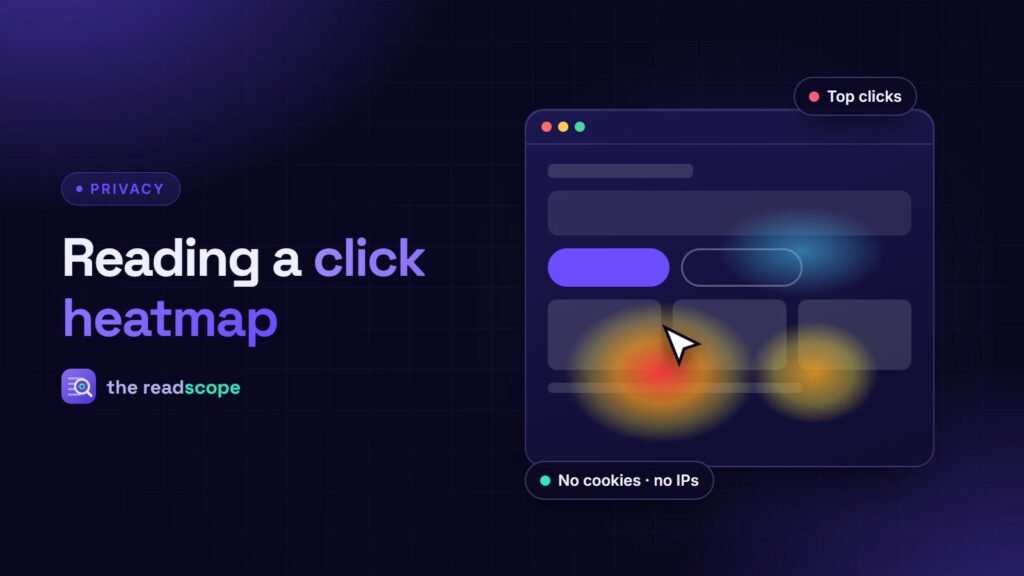
A heatmap is easy to open and surprisingly easy to misread. You see warm colours on a page and have to decide what, if anything, to change. This guide gives a simple way to read one and five common patterns with the fix to try for each. It uses AccessIQ as the example, but the method works with any click heatmap. For how heatmaps work and how to keep the data on your own server, see Click heatmaps without Hotjar: self-hosted options for WordPress.
Before you look: set up the view
- Pick one page with one goal. A pricing page, a contact page or a product page. A heatmap of a page with no clear goal is just decoration.
- Choose a date range. The heatmap view lets you filter by 7, 30 or 90 days. Start with 30. If the picture looks very different at 7 days, you probably do not have enough clicks yet.
- Filter by device. Look at desktop, mobile and tablet one at a time. They are different pages in practice.
- Open the ranked list. Next to the colours, AccessIQ shows the most-clicked elements with their click count and share of the total. Use it. Colour is a feeling; a ranked list is a number.
Five patterns and what to do about each
1. Your main button gets almost no clicks
If the primary call to action sits low in the ranked list, ask three questions. Is it visible without scrolling on mobile? Does its colour stand out from the background? Does its label say what happens next? “Submit” tells a visitor nothing; “Get my quote” does. Change one of these, not all three, so you know which one helped.
2. People click on something that is not a link
A cluster of clicks on a heading, an image or a bold phrase means visitors expect it to do something. You have two honest options: make it a link to where they expect to go, or change its styling so it no longer looks clickable. Underlined text and button-like boxes are the usual culprits.
3. One menu item takes most of the clicks
The ranked list often shows that two or three menu links get nearly all the clicks. Move those to the most visible place, and consider dropping or merging the ones nobody uses. A shorter menu is easier to scan, and it is easier to make accessible too.
4. Mobile and desktop disagree
A page can look healthy on desktop and fail on mobile. If the same button is well clicked on one and ignored on the other, the cause is nearly always layout: it is pushed below a large image, hidden in a collapsed section, or too small to tap. Fix the mobile layout first, because that is where most small problems hide.
5. Clicks pile up in a spot with no obvious target
Hot spots on empty space or on a non-interactive area can mean visitors are tapping something that did not respond, or missing a small target. Check that interactive elements are large enough to tap and that they give clear feedback when pressed. Target size is also an accessibility matter: see WCAG 2.2 checklist for WordPress sites.
Check that a change worked
- Write down the page, the date range and the element you will change.
- Make one change.
- Wait the same length of time as your first view, then open the same date range and the same device.
- Compare the element’s click count and its share of the total in the ranked list.
Compare shares as well as counts. If traffic doubles, every count goes up, but the share of clicks on your button tells you whether it became more prominent.
When visitors are most active
The analytics view also shows the hour of the day when your visitors are most active. That is useful for timing a newsletter or a sale announcement, and for choosing a quiet hour for maintenance.
Be honest about the limits
- A heatmap shows where people click, not why. Add a quick user test or a short survey for the “why”.
- Click data says nothing about people who did not click. A clean-looking page can still lose visitors before they act.
- Small amounts of data mislead. Look at longer ranges before you change a design.
- Whatever tool you use, mention it in your privacy policy.
Keeping the data private
AccessIQ stores click data in your own WordPress database. It does not use cookies and does not load a third-party script, so you do not send visitor behaviour to an outside service. Say so in your privacy policy, and describe it in your own words.
Frequently asked questions
How many clicks do I need before a heatmap means anything?
There is no single number. Wait until the same few elements keep coming out on top when you look at a longer date range. If the picture changes a lot between 7 days and 30 days, you do not have enough data yet.
Why should I look at mobile and desktop separately?
Layouts differ, so a button that is easy to find on a laptop can sit far down on a phone. Mixing the two hides both patterns.
What does a lot of clicking on a heading or an image mean?
Usually that visitors expect it to be a link. Either make it one or change its look so it stops suggesting that it is.
Does a heatmap tell me why people click?
No. It shows where, not why. Pair it with a short user test or a one-question survey before making a big design decision.
Does AccessIQ need cookies for heatmaps?
No. Click data is stored in your own WordPress database, and the AccessIQ heatmap does not use cookies or a third-party script.