In this article
Most sites treat a PDF as a finished object: export it, upload it, link to it. But a PDF is a page of its own, and it can fail visitors in the same ways a web page can. Screen reader users may hear the words in the wrong order, or nothing at all. Visitors who search your site never find what is inside. This checklist walks through both problems. It is general guidance, not legal advice.
Part 1: is the file itself accessible?
No viewer can fix a badly built PDF, so start with the file.
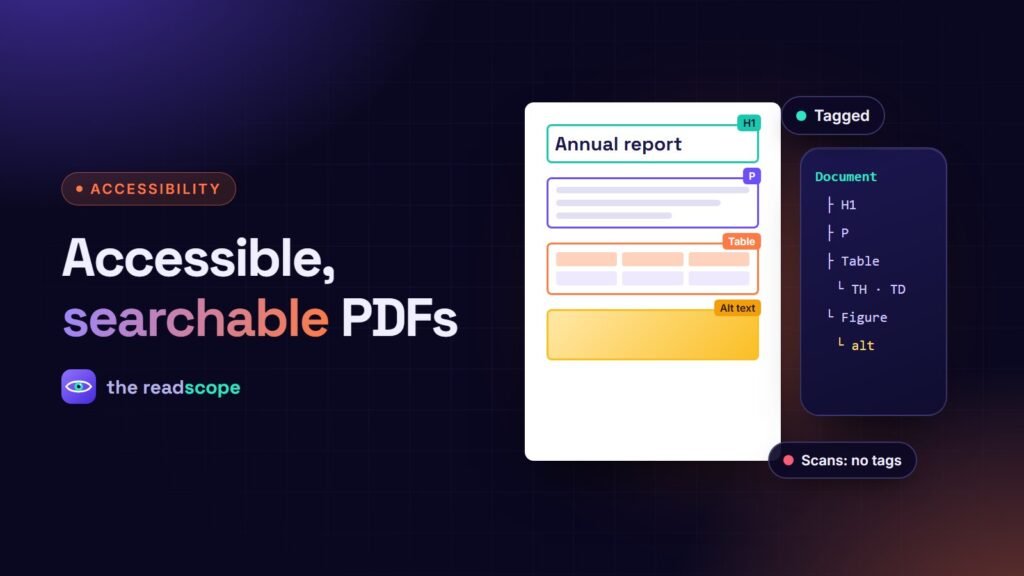
- It is tagged. Tags describe the structure: headings, paragraphs, lists, tables, figures. Export from Word, InDesign, Google Docs or Affinity with the “tagged PDF” or “accessibility” option turned on. A PDF made by printing to a “PDF printer” is usually untagged.
- It has a title and a language. The title appears in the browser tab and is read first. The language lets a screen reader pick the right voice. Both are in the document properties.
- The reading order makes sense. Two-column layouts, sidebars and pull quotes are the usual culprits. Acrobat’s reading order tool, or a quick listen with a screen reader, will show problems.
- Images have text alternatives. Informative images need a short description, decorative ones should be marked as such. See How to write alt text that actually helps (with examples) for how to write them.
- Headings are real headings. Bold, larger text is not enough. Use heading styles in the source document so they become heading tags.
- Colour contrast is sufficient and nothing relies on colour alone. The same rules as on the web apply, see Color contrast on WordPress: ratios, tools and easy fixes.
- Tables have header cells and are not used for layout.
- It is not a scan of paper. A scan without OCR has no text for anyone, human or machine.
If you only have time for one fix, make it the tags. Without them, almost everything else is guesswork for assistive technology.
Part 2: can visitors find the words inside it?
WordPress search looks at titles and content of posts and pages. A PDF in the Media Library is an attachment, and its text is not part of that index. So a visitor who types “refund policy” will not find your refund policy if it only lives inside a PDF.
The fix is to extract the text once and store it where the search can see it. This can be done in the browser with PDF.js, so the file never has to leave your site. Then any post or page that embeds the PDF can match on words inside it.
Part 3: how it is shown on the page
- Keyboard control. Every button needs a label and visible focus. Paging, zoom, search and fullscreen should work without a mouse.
- Announcements. When the page changes, a screen reader user should hear it, for example “Page 4 of 12”.
- A fallback. If JavaScript fails or is off, there should still be a plain link to the file.
- Reduced motion. A page-turn animation should respect the visitor’s reduced motion setting.
- A small screen. A two-page spread is unreadable on a phone. Fall back to a single page.
- Social previews. A good Open Graph image from the first page makes shared links look right.
With Flipset
Flipset covers the page side of this list and helps with the file side. Its Docs & Features screen lists your PDFs with a search-index status and an accessibility status, and marks files that are not tagged, so you know which to fix first. It extracts PDF text in your browser and stores it on your site, so posts that embed a PDF match in WordPress search. The viewer has labelled buttons, visible keyboard focus, screen reader page announcements, respects reduced motion, shows a single page on narrow screens and prints a plain link when JavaScript is off.
It still cannot make an untagged file accessible. That work happens in the source document. For the embedding side, see How to embed a PDF in WordPress without a CDN, and to decide whether a PDF is the right format at all, read PDF or web page? When to publish each in WordPress.
Frequently asked questions
What is a tagged PDF?
A PDF with a hidden structure that marks headings, paragraphs, lists, tables and images, so assistive technology can read it in a sensible order. Most authoring tools can export tagged PDFs.
Why does WordPress search not find words inside my PDFs?
By default WordPress searches post and page content, not the text inside uploaded files. The text has to be extracted and stored somewhere the search can reach.
Can a scanned PDF be searchable?
Only after OCR (optical character recognition) turns the picture of text into real text. Without it, the file is just images.
Does embedding a PDF make it accessible?
No. A viewer can add keyboard controls and screen reader announcements, but the file itself still needs tags, a reading order and alternative text.
How does Flipset help?
It flags PDFs that are not tagged for accessibility, extracts PDF text so WordPress search can match it, announces page changes to screen readers and offers a plain link to the file when JavaScript is off.