Flipset Pro: protect documents
Secure Mode, viewer locks, a watermark, access rules for members and buyers, and protected share links.
On this page
Secure Mode
Open a file in Media, edit it, and turn on Flipset Secure Mode. Flipset moves the file to a protected folder with an unguessable name. Its public address stops working, and Flipset viewers load it through short-lived signed links. You can also limit it to logged-in users.
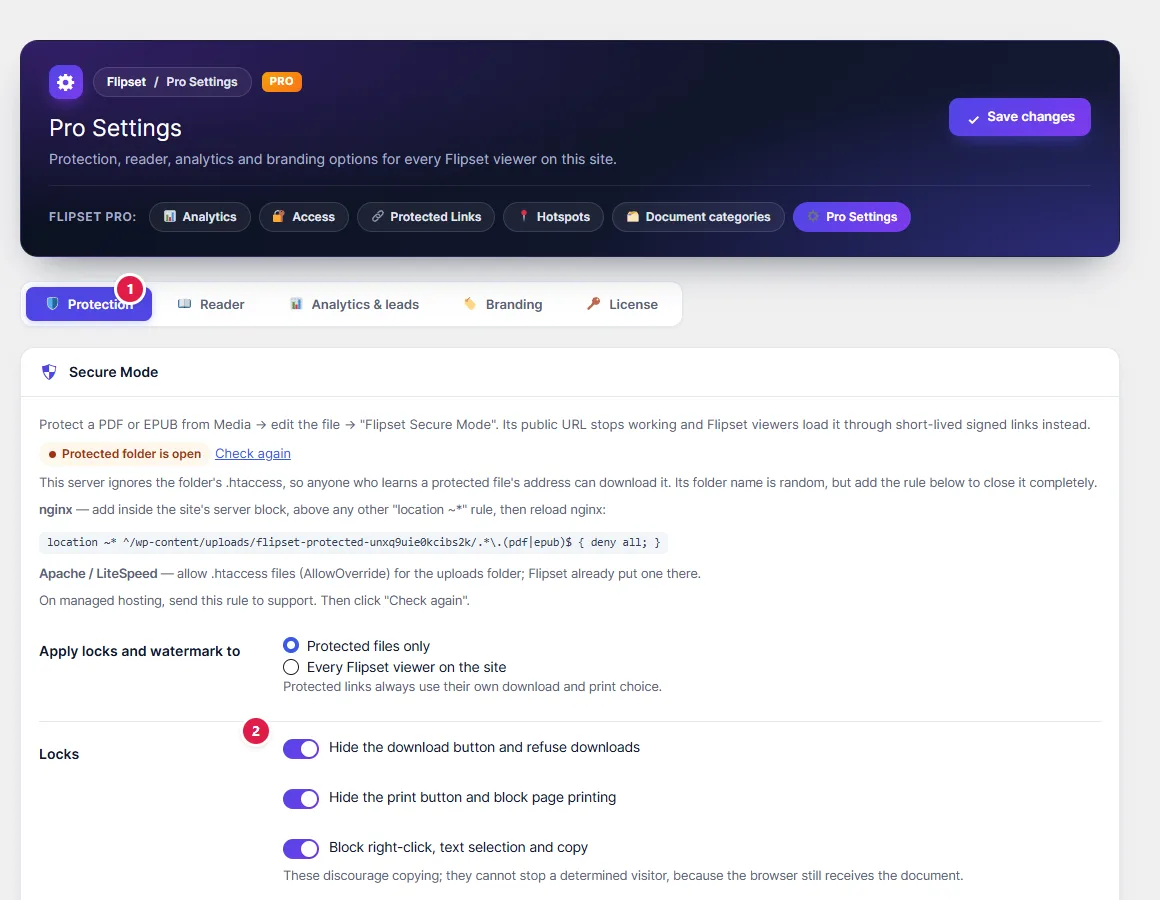
- The signed link lifetime is set in Flipset → Pro Settings (12 hours by default).
- On Apache, a rule in the protected folder blocks direct requests. On nginx, add the rule shown on the Pro Settings screen to block the folder completely.
- Pages that show a protected viewer are not cached.
- Deleting Pro moves every protected file back to its original folder. Deactivating Pro without deleting it leaves the files protected, so on Apache their Media addresses stay blocked until Pro is active again.
Viewer locks and watermark
- Hide download and print, and block right-click, text selection and copy, for protected files only or for every viewer.
- A tiled watermark over the pages. You can use
{name},{email},{recipient},{ip},{date}and{site}.
Be honest about the limit. Whoever can view a document receives its bytes. Locks discourage copying; they cannot prevent it. The watermark is shown in the viewer only and is not written into the file.
Access rules
Under Flipset → Access, choose per document who can read the full file: logged-in users, specific roles, buyers of a WooCommerce product, or members of MemberPress, Paid Memberships Pro or WooCommerce Memberships. Everyone else sees a real preview (a separate PDF with only the first pages) or a locked card.
- Rules belong to the file, so they apply in posts, the library and product pages alike.
- Protect ruled files with Secure Mode. Without it, the file’s public address bypasses the rules.
- Previews work for PDFs only and cannot be made from encrypted PDFs. Rebuild a preview after you replace the PDF or change its page count.
- Removing a product link does not remove the rule. The document stays locked until you change it on the Access screen.
Protected links
Under Flipset → Protected Links, create a standalone address for a PDF or EPUB that can:
- require a password,
- expire at a date and time,
- stop after a maximum number of views.
Each link can allow or block download and print (both off by default), has a label and recipient, can be turned off and on, and lists its 50 most recent views. A view is counted once per browser every 12 hours, so reloading does not use up a cap. After 10 wrong passwords from one address, that link locks for that address for 15 minutes.
To protect the file itself, use Secure Mode. Files outside the Media Library cannot be protected, so for those the password and limits protect only the page.