Hide controls, set a theme and open on a page
Show or hide the toolbar buttons, pick light, dark or sepia, and link to a specific page.
Site-wide defaults
Open Flipset → Settings to set the defaults for every viewer: width, height, theme, lazy loading, and which controls are shown. A single embed can override any of them.
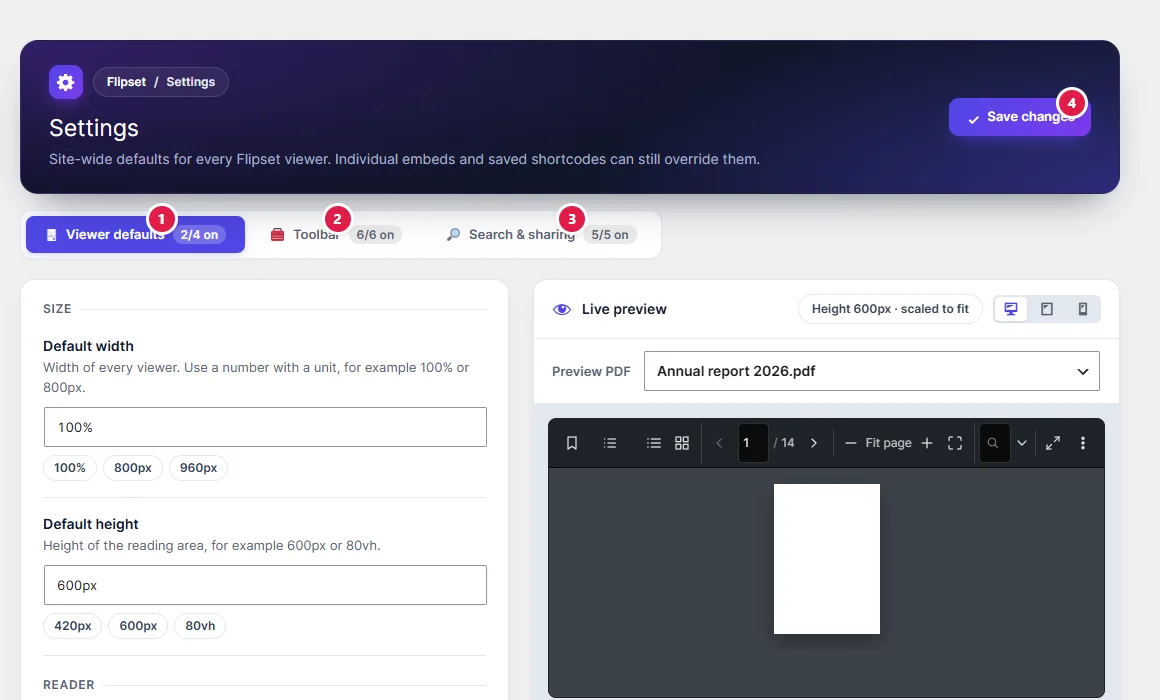
Hide download or print
[flipset file="https://example.com/terms.pdf" download="false" print="false"]On the block, use the matching toggles. To hide other controls, use hide:
[flipset file="https://example.com/terms.pdf" hide="share,fullscreen"]The names you can use in hide are nav, zoom, fit, rotate, view, pan, download, print, search, theme, share, shortcuts, presentation and fullscreen.
Be aware: hiding the buttons does not stop someone who has the file’s address from downloading it. The free plugin is for presentation, not protection. Flipset Pro adds Secure Mode and viewer locks.
Reading themes
Choose theme="light", "dark" or "sepia". Add theme_btn="true" to let visitors switch themes themselves.
Open on a page
- Shortcode:
[flipset file="..." page="4"] - Block: set Start page
- Link: add
#page=4to the address of the page that holds the viewer
By default the address is kept in step with the page the visitor is on (hash="true"), and the last page is remembered on their device (resume="true").