In this article
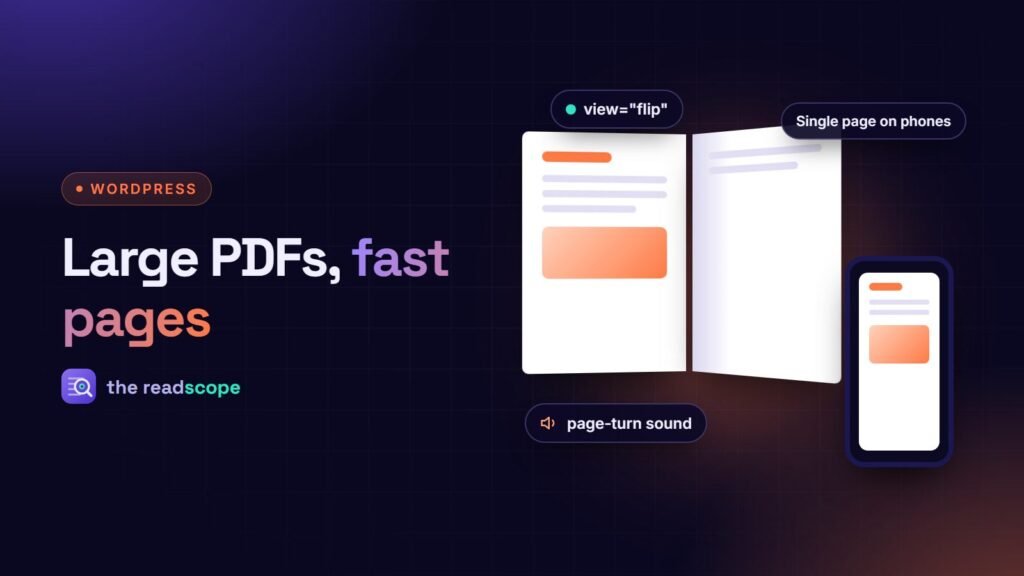
You upload a beautiful 40 MB brochure, embed it, and your fast page suddenly feels slow. On a phone with a weak connection it may not show anything for ten seconds. The viewer is rarely the culprit. The file is. This guide shows how to find out what makes a PDF heavy, shrink it without ruining it, and embed it so it stays out of the way. The numbers are rules of thumb, so test with your own files.
Why a PDF gets heavy
- Print-resolution images. Photos at 300 to 600 dpi are right for a printer and far too much for a screen.
- Scanned pages. A scan is a stack of full-page images, often with no real text.
- Full embedded fonts. A font family can add several megabytes when the whole font is included instead of only the characters you use.
- Hidden extras. Layers, thumbnails, old versions, form data and attachments all add bytes.
Step 1: shrink the file at the source
- Export for screen, not print. Most layout tools have a “smallest file size” or “web” preset. Start there.
- Downsample images to about 150 dpi and use moderate JPEG quality. That looks sharp on screens. Keep 300 dpi only for a print version.
- Subset the fonts so only the characters you use are embedded.
- Clean up. Remove unused objects, layers, attachments and metadata you do not need. Acrobat’s “Reduce File Size” and “Audit space usage” show where the bytes are. Free tools such as Ghostscript can also recompress a PDF.
- Save with Fast Web View (a linearized PDF). The first page can then appear before the whole file has arrived, if your server supports byte-range requests.
Then compare. A brochure that was 40 MB often lands under 5 MB with no visible loss on screen.
Step 2: keep two versions
People who want to print need the large, sharp file. Everyone else needs the light one. Embed the light version for reading and add a plain download link to the print-quality file. Your page stays fast, and nobody loses anything.
Step 3: embed it so it stays out of the way
- Host the file on your own site in the Media Library unless you have a reason not to. A PDF on another domain needs CORS headers from that host, and that host sees your visitors’ IP addresses. See How to embed a PDF in WordPress without a CDN.
- Do not stack viewers. One viewer per page is plenty. For many documents, a library grid that opens a document on demand is lighter than ten embeds. See How to build a searchable PDF document library in WordPress.
- Lazy-load viewers below the fold so they load when the visitor scrolls near them.
- Do not let an optimizer break the viewer. Minifying, combining or delaying the viewer scripts can leave a blank frame. Exclude them in your cache or optimization plugin.
- Use a page cache. It helps every page, including the ones with embeds.
Step 4: test like a visitor
- Open the page on a real phone, away from your Wi-Fi.
- In Chrome DevTools, open the Network tab and choose a throttled connection such as “Fast 4G”. Watch how long the first page of the PDF takes to appear.
- Run a speed check on the page and compare it with and without the embed.
- Try the keyboard only. A faster page that nobody can operate is not a win. See Are your PDFs accessible and searchable? A practical WordPress checklist.
With Flipset
Flipset helps with the embedding side. It draws only the visible page (or a two-page spread), and in continuous scroll it renders nearby pages only. The PDF.js viewer is bundled with the plugin, so nothing is loaded from a CDN, and there is optional lazy loading. It excludes its own scripts from minify, combine and delay in WP Rocket, W3 Total Cache, Autoptimize, LiteSpeed Cache and SiteGround Optimizer. A very large file still has to be downloaded once, so keep uploads reasonably sized, as described above.
If you are still deciding whether a PDF is the right format at all, read PDF or web page? When to publish each in WordPress. And for the 3D page-turn view, see Flipbook PDFs in WordPress: self-hosted or a hosted service?.
Frequently asked questions
How big is too big for a PDF on a web page?
There is no fixed limit, but as a rule of thumb a brochure should stay under about 5 to 10 MB and a long report under about 20 MB. The real test is how long the first page takes to appear on a slow mobile connection.
What is Fast Web View?
A PDF setting, also called linearized, that arranges the file so the first page can be shown before the whole file has downloaded. It works best on a server that supports byte-range requests.
Should I use a CDN for PDFs?
Files in your Media Library work fine from your own site. A CDN or a good page cache helps on busy sites. If the PDF is on another domain, that host must allow your site to fetch it (CORS), and the host sees your visitors' IP addresses.
Why is my viewer blank after I turned on a cache plugin?
Optimizers sometimes combine or delay the viewer scripts. Exclude the viewer scripts from minify, combine and delay. Flipset does this for WP Rocket, W3 Total Cache, Autoptimize, LiteSpeed Cache and SiteGround Optimizer.
Does a smaller PDF lose quality?
Only if you compress too hard. Images at about 150 dpi look sharp on screens. Keep a print-quality version as a separate download for people who need it.