How to build a searchable PDF document library in WordPress
Turn a pile of PDFs into a tidy, searchable library with thumbnails, filters and in-page reading, without a heavy document management system.
Schools, councils, clubs and companies often end up with dozens of PDFs: policies, forms, reports, price lists. A plain list of links is hard to scan and impossible to search. A proper library takes an afternoon to set up and saves visitors a lot of clicking.
What a good document library has
- A grid with cover thumbnails so people recognise documents at a glance
- Search and, for larger libraries, filters by category or year
- Pagination so the page stays fast
- An in-page reader so people do not leave the site for a download
- Clear titles, dates and file sizes
Step by step
- Prepare the files. Use readable names (
annual-report-2025.pdf), compress large images and export tagged PDFs. See Tagged PDFs: how to make documents accessible on your WordPress site. - Upload to the Media Library and fill in the title and, where useful, a description.
- Add the library to a page with a block or shortcode, and choose columns, items per page and sort order.
- Generate thumbnails once so the grid shows first pages.
- Index the text so search can match words inside documents.
- Test on a phone and with the keyboard.
An example setup
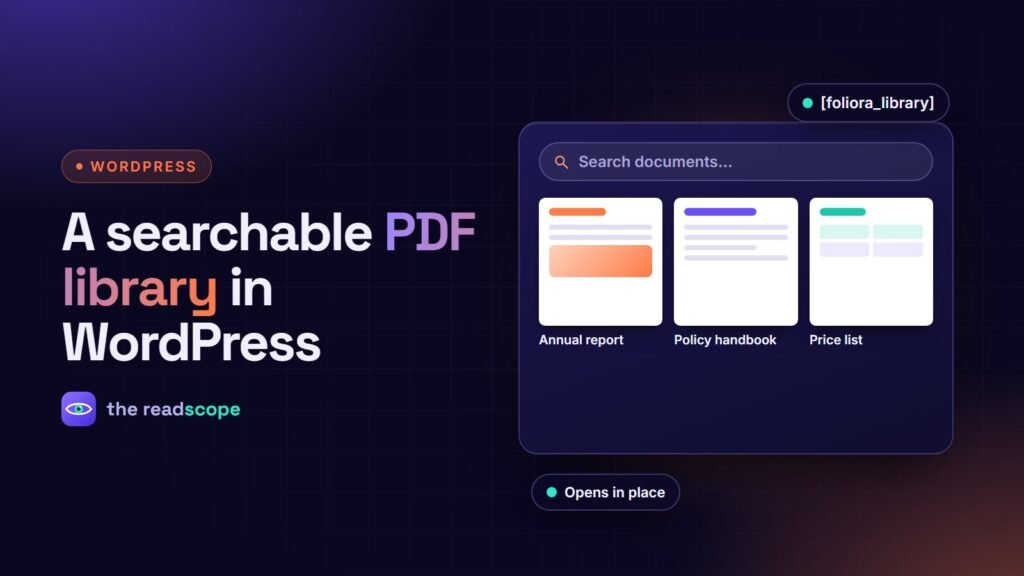
Foliora provides this out of the box. The [foliora_library] shortcode (or the Foliora Library block) shows a grid of your Media Library PDFs with first-page thumbnails, search and pagination, and each document opens in the viewer without leaving the page. You can set columns, per_page, orderby (date, title or modified), order and search. Thumbnails are drawn in your browser the first time you open the Docs and Features screen and saved in the Media Library, so they are not regenerated on every page load. PDF text is extracted there too, which lets WordPress search find posts and pages that embed those files.
Keep it maintainable
- Put the year or version in the title, and remove or archive old versions.
- Keep one library page per audience (for example members and public).
- Review the library every quarter.
- If a document must be private, do not rely on an unlisted URL; use proper access control.
For the different ways to show a single PDF, see How to embed a PDF in WordPress without a CDN.
Frequently asked questions
What is the easiest way to list PDFs on a WordPress page?
Upload them to the Media Library and use a library block or shortcode that outputs a grid of the PDFs, with thumbnails and search.
How do I get thumbnails for PDFs?
WordPress does not make them reliably. A library plugin can render the first page in the browser once and save it as an image in the Media Library.
Can visitors search inside the documents?
Only if the PDF text is indexed by your search. Some plugins extract the text and store it so WordPress search can match it.
How should I organise many documents?
Use consistent file names, a small set of categories, a year or version in the title, and archive outdated versions.