Accessible forms in WordPress: labels, errors and required fields
Forms are where accessibility problems cost you leads and sales. A practical guide to labels, error messages, required fields and autocomplete.
If a visitor cannot complete your contact form or checkout, nothing else on the site matters. Forms are also where small markup mistakes make a big difference to screen reader and keyboard users. Use this checklist on every form you publish.
1. Every field needs a label
- Use a visible
<label>linked to the input (withforandid, or by wrapping the input). - Placeholders are hints, not labels.
- Group related options (radio buttons, checkboxes) in a
fieldsetwith alegend. - Icon-only buttons need an accessible name, such as
aria-label="Search".
2. Mark required fields properly
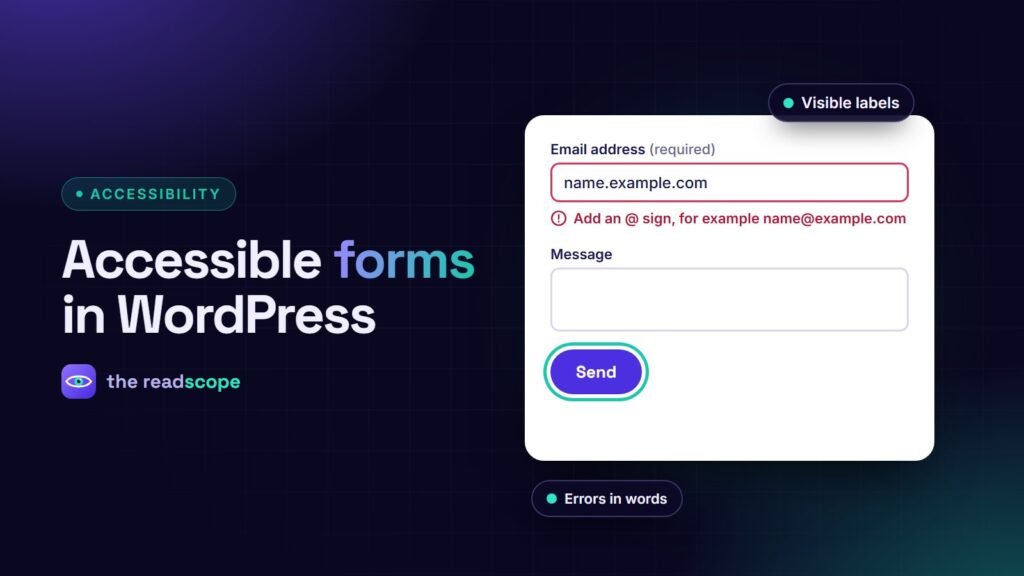
- Say it in words: “(required)” or a line at the top, “Fields marked * are required”.
- Add the
requiredattribute so assistive tools know. - Do not rely on color alone to show required or invalid.
3. Write errors people can act on
- Name the field and the problem: “Email address: add an @ sign”.
- Show the message next to the field and link it with
aria-describedby. - Set
aria-invalid="true"on the field. - After a failed submit, move focus to an error summary or the first invalid field.
- Keep what the person already typed.
4. Help people fill in details
- Use the right
type(email, tel, number) so mobile keyboards adapt. - Add
autocompletevalues for name, email, phone and address (WCAG 1.3.5). - Do not ask for the same information twice in one process (WCAG 3.3.7).
- Allow pasting in password fields (WCAG 3.3.8).
5. Keyboard and focus
- Tab order follows the visual order.
- The focused field has a clearly visible outline.
- Enter submits, and custom widgets (date pickers, dropdowns) work without a mouse.
- CAPTCHAs have a non-visual alternative.
6. Test it
- Complete the form with the keyboard only.
- Submit it empty and read the errors aloud. Do they make sense?
- Zoom to 200%; nothing should overlap.
- Run a scan to catch missing labels and names.
AccessIQ flags form fields with no label, buttons with no name and many related markup problems, and shows the element so you can fix the template. Page builders and form plugins vary a lot, so scan the real page, not only the form builder preview.
Next: The 10-minute keyboard test every WordPress site should pass and Multi-step lead forms in WordPress: how to build one that people finish.
Frequently asked questions
Is a placeholder enough as a label?
No. Placeholders disappear when typing, often have poor contrast, and are not reliably announced as labels. Use a real label element.
How should I show required fields?
Say it in text, such as (required) or a note that explains the asterisk, and also set the required attribute.
How should error messages work?
Describe the problem in words, place it next to the field, link it to the input and move focus to the first error or an error summary.
What is the autocomplete attribute for?
It lets browsers and assistive tools fill in common fields such as name, email and address, which helps people with motor or cognitive difficulties.