Dashboard and Elements Manager
Turn modules on or off, check your system and read the built-in documentation.
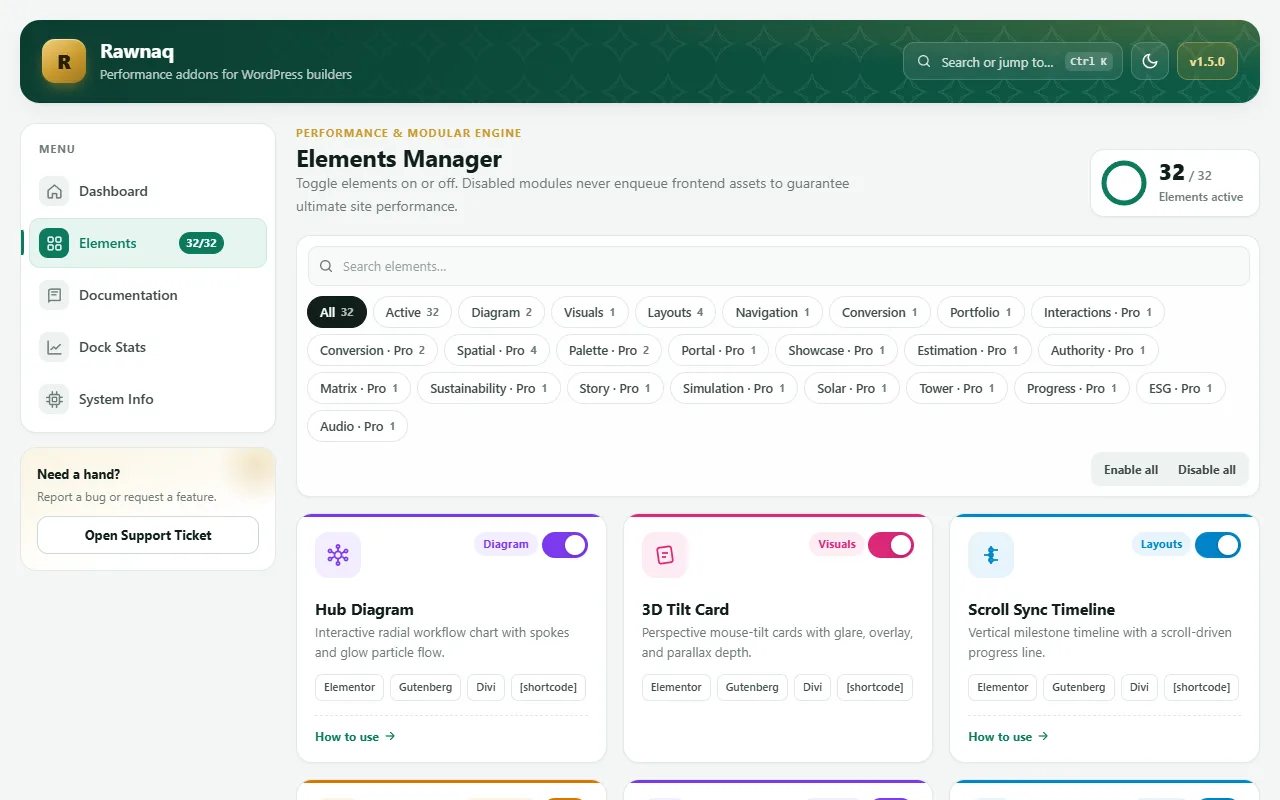
Open Rawnaq in the admin sidebar. The dashboard has a menu with five parts:
| Part | What it does |
|---|---|
| Dashboard | Overview of active modules and your version. |
| Elements | The Elements Manager: switch each module on or off. A counter shows how many are active, for example 32/32 when the free and Pro plugins are both active. |
| Documentation | Short guides for each module. |
| Dock Stats | Click counts for the Floating Dock, if you turn tracking on. |
| System Info | WordPress and PHP versions, and whether Elementor and the block editor are available. A Copy report button helps when you ask for support. |
Switch modules off
Turn off modules you do not use. A module that is off is not loaded at all. The dashboard also has a search box (Ctrl K) and a light and dark theme toggle.
Integration settings
The dashboard also holds the keys for optional services, such as Google reCAPTCHA and Mailchimp, with buttons to send a test email, test a webhook and test the Mailchimp connection. See Smart Form delivery and spam protection.