In this article
- 1. Write one article per question
- 2. Group articles into a few clear sections
- 3. Make search instant
- 4. Show when an article was last checked
- 5. Ask readers if it helped
- 6. Write for the assistant that reads it next
- 7. Put the docs where the question happens
- 8. Keep it fast, and keep it yours
- Doing it with Nirdeshio
A customer who cannot find the answer does one of three things: writes to support, leaves a bad review, or quietly stops using your product. Documentation is how you prevent all three. This guide covers how to plan it, and how to publish it on WordPress in a way that works for the people who read it and for the AI assistants that increasingly read it on their behalf.
1. Write one article per question
People do not read documentation, they look for an answer. So each article should answer one question, and the title should be that question in the words a customer would use. “How do I move my licence to a new site?” beats “Licence management”.
- Put the answer in the first two sentences, and the detail after it.
- Use numbered steps for tasks and short paragraphs for explanations.
- Show the exact name of every button and menu, as it appears on screen.
- End with what to try if it did not work, and where to ask.
2. Group articles into a few clear sections
Three levels is the most readers will tolerate, and two is usually enough. A pattern that works for most products:
- Getting started: install, first-run setup, the first thing to do.
- Guides: one section per feature or job.
- Troubleshooting: errors, with the exact message as the title.
- Reference: settings, shortcodes, hooks, limits.
- FAQ and changelog.
Name sections after what the reader wants to do, not after your internal feature names.
3. Make search instant
Most visitors go straight to the search box. It should respond as they type, rank titles above body text, and never show draft articles. Plain WordPress search is built for blog posts, so it is not ideal here. A database full-text index, which is what Nirdeshio uses, is quick and does not need an outside search service.
4. Show when an article was last checked
Out-of-date documentation is worse than none, because it sends people the wrong way with confidence. Record a review date on each article, show the “last updated” date to readers, and every month look at the oldest few. In Nirdeshio the WordPress dashboard widget lists draft, stale and unsectioned articles, so you do not have to hunt for them.
5. Ask readers if it helped
A simple “Was this helpful?” on every article tells you which pages fail. Treat every “no” as a to-do item. Collect the votes without collecting personal data, and keep them on your own site.
6. Write for the assistant that reads it next
When someone asks ChatGPT, Claude or Perplexity how to set up your product, the answer is only as good as what the assistant can read. Rendered web pages work, but they are full of navigation and scripts. Two small things help:
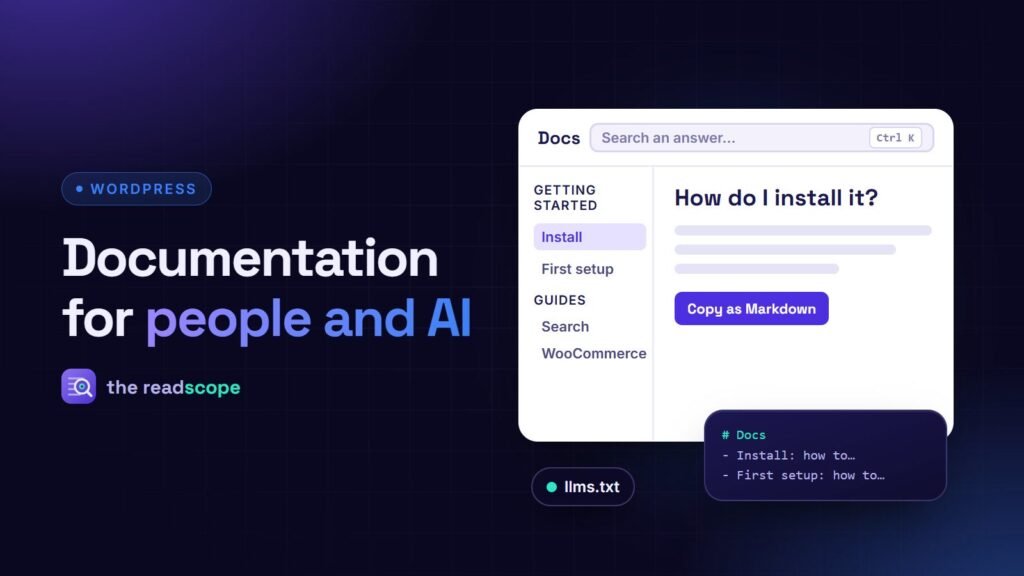
- A map of your docs. An
llms.txtfile lists your articles with a one-line summary each, in a format described at llmstxt.org. A longer variant can include the full text of every article. - Clean text to copy. A “Copy as Markdown” button on each article lets a reader paste the article into an AI chat, an issue or a pull request without the surrounding page.
Nobody can promise that a given assistant will use these files, so treat them as a low-cost way to make your docs easy to read, not as a ranking trick. Whatever you publish this way must be public anyway. Only publish articles you would be happy to show anyone. For more on being found by assistants, see How to get your WordPress plugin or product found by AI assistants.
7. Put the docs where the question happens
If you sell on WooCommerce, the product page is where “does it work with…?” is asked. Link the relevant articles to the product so they appear on the page itself, and show only published ones. Link the same articles from your support form and from the error messages in your product.
8. Keep it fast, and keep it yours
- Load documentation assets only on documentation pages.
- Avoid heavy scripts. A docs page should open at once on a phone.
- Keep the data in your own database, on your own domain, so the SEO value and the content stay with you.
- Make it readable: sufficient contrast, keyboard use, a print layout. See The 10-minute keyboard test every WordPress site should pass for a quick check.
Doing it with Nirdeshio
Nirdeshio is a free documentation and knowledge base plugin for WordPress that covers the points above. You can create as many knowledge bases as you need, with sections up to three levels deep and drag-and-drop ordering. It has instant full-text search, an automatic table of contents, related articles, light and dark mode, a print layout, feedback buttons, review dates and the dashboard widget. It also creates /llms.txt and /llms-full.txt for published articles, adds a Copy as Markdown button, imports Markdown files as drafts, and adds a Documentation tab to linked WooCommerce products.
The frontend uses no jQuery and loads only on documentation pages, with the search modal loaded when someone opens it. A setup wizard and one-click sample content let you see the result before you write a word, and you can remove the sample content just as easily. Start small: the ten questions your support inbox gets most often make a good first version.
Frequently asked questions
What is llms.txt?
A plain text file at the root of a site, described at llmstxt.org, that lists the important pages with a short summary each, so an AI assistant can find them without guessing from the page layout. Whether a particular assistant reads it is up to that assistant.
Do I need a separate documentation service?
Not necessarily. A WordPress plugin can keep your docs in your own database, on your own domain, next to the rest of your site and under your own SEO.
How do I stop documentation going out of date?
Give every article a review date and look at the oldest ones regularly. Nirdeshio records a last-reviewed date per article and shows stale articles on the WordPress dashboard.
Can I import documentation I already wrote?
Yes, if it is in Markdown. Nirdeshio imports a .md file as a draft article, and can import and export a whole project as JSON.
Can documentation show up on a WooCommerce product page?
Yes. In Nirdeshio you link articles to products, and those products get a Documentation tab listing the published articles. Drafts are never shown.
Does it cost anything?
Nirdeshio is free on WordPress.org and all of its features are included.