In this article
Sales brochures, product catalogues, annual reports, menus, course outlines. These documents exist to start a conversation, yet they are often a download link on a page with no next step. A resource page fixes that: the document is readable right there, and a short form is waiting for the visitor who has questions.
The layout that works
- A clear heading and one sentence on what the document is and who it is for.
- The document itself, shown in a viewer, not hidden behind a download.
- Two or three short bullets with the main points, for people who will not open it.
- A short form below, framed as a question: “Want this adapted to your business? Tell us a little.”
- A line about your privacy practice next to the button.
Step 1: show the PDF as a flipbook
Upload the PDF to the Media Library and embed it with a shortcode. With Flipset installed:
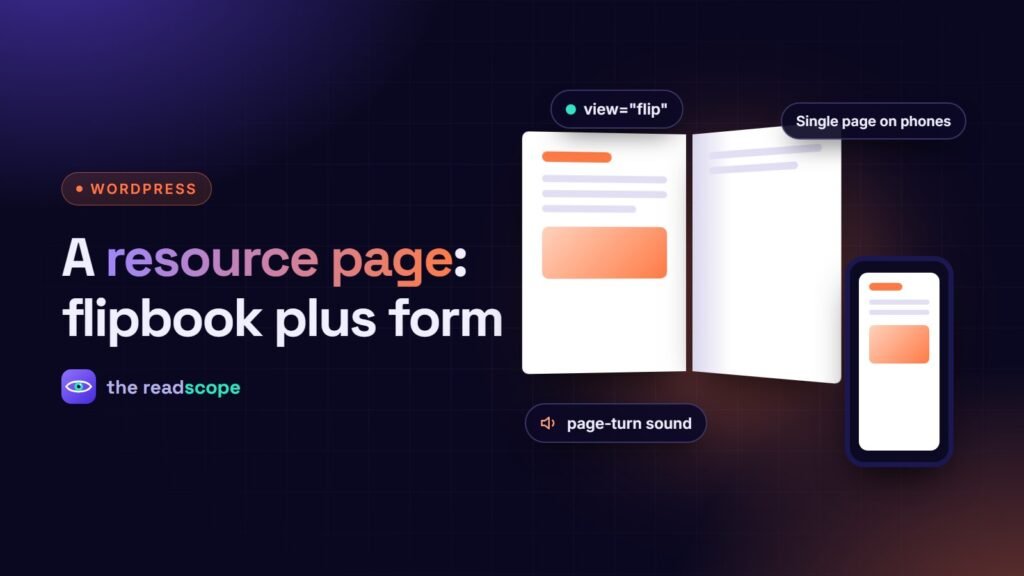
[flipset file="https://example.com/wp-content/uploads/brochure.pdf" view="flip"]Or insert the Flipset Viewer block and pick the file. Use view="flip" for a designed brochure, and continuous scroll for a long report. On narrow screens the viewer falls back to a single page. Keep the file reasonably small, since the visitor has to download it once. The viewer runs from your own site, so the document is not sent to an outside service. See Flipbook PDFs in WordPress: self-hosted or a hosted service? for the details.
Step 2: add a short lead form
Place a Smart Form from Rawnaq under the viewer, using the Elementor widget, the Gutenberg block or the Divi module, whichever you build with. Keep it to two short steps: what they are interested in, then name and email. Send the lead where you will see it first, for example email, WhatsApp or your CRM. More on planning the form in A multi-step lead form for WordPress that reaches you by email, WhatsApp or CRM.
Step 3: be straight about the data
- Say in one sentence what you will do with the details and link your privacy policy.
- Collect only what you will use.
- Decide how long you keep submissions and delete old ones.
Step 4: make the page findable
- Give the page a descriptive title and meta description, not “Brochure”.
- Flipset can store the PDF’s text so your site search finds words inside it, and adds Open Graph image from the first page for good previews when the page is shared.
- Offer a plain download link as well, for people who prefer to save it.
Step 5: check it like a visitor
- Open the page on a phone. Is the document readable and is the form easy to tap?
- Use only the keyboard. Can you page through the document and complete the form?
- Submit a test lead and confirm it arrives where you expect.
- Run a speed check. Two plugins that load assets only where needed should not slow the page.
For a page that also needs interactive sections, a bento grid for the key points is a nice companion. See How to design a bento grid section in WordPress.
Frequently asked questions
Do Flipset and Rawnaq need to be connected?
No. They are separate plugins. You place a Flipset shortcode or block and a Rawnaq Smart Form on the same page, and each does its own job.
Should I hide the document until someone fills in the form?
That depends on your goal. Open documents are read more and shared more. If you do gate a file, tell visitors clearly what they get and what you do with their details.
Which view is best for a brochure?
The 3D flipbook suits short, designed documents such as brochures and catalogues. For long reports, continuous scroll is easier to read. On narrow screens Flipset shows a single page.
Will the page be slow?
Flipset draws the visible page only, and Rawnaq loads its CSS and JS only on pages where a module is used, so a page with both can stay light.