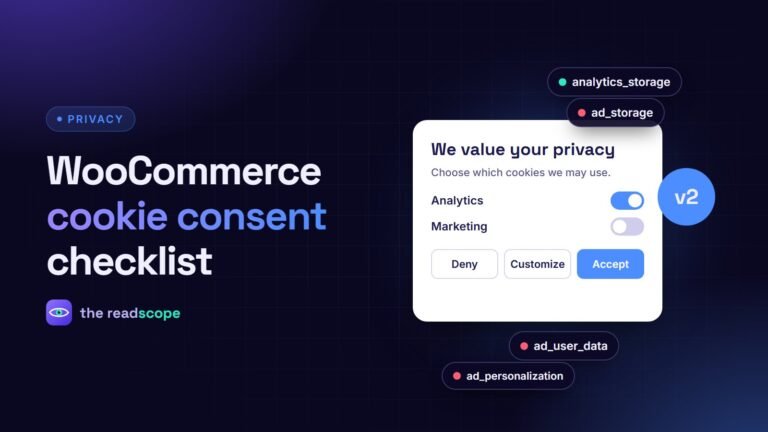
Google Consent Mode v2 for WooCommerce, in plain English
What Google Consent Mode v2 does, why WooCommerce stores in Europe need it, and a simple setup that keeps your shop fast.
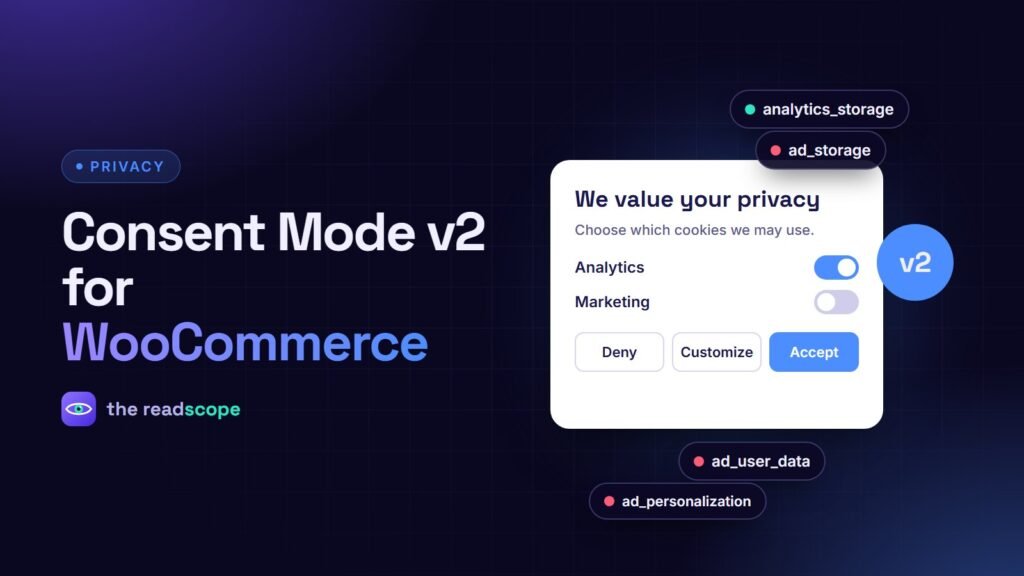
If your WooCommerce store sells to people in the European Economic Area or the UK, Google expects your site to tell its tags what each visitor has agreed to. That mechanism is called Consent Mode, and version 2 added two new signals. Here is what it means in practice.
What Consent Mode does
Consent Mode is a way for your site to pass the visitor’s cookie choice to Google tags (Analytics, Ads, Floodlight). The tags then change their behaviour: with consent they behave normally; without it they limit what they store and send.
The four signals
| Signal | Controls |
|---|---|
| analytics_storage | Cookies for analytics measurement |
| ad_storage | Cookies for advertising |
| ad_user_data | Whether user data may be sent to Google for advertising (new in v2) |
| ad_personalization | Whether personalized advertising is allowed (new in v2) |
The setup order that works
- Set defaults to denied before any Google tag runs. This must be in the page head, ahead of Tag Manager or gtag.
- Show a clear choice: Accept, Deny and a way to customize. Do not pre-tick optional categories.
- Update consent as soon as the visitor chooses, and remember the choice.
- Load Tag Manager after the choice, or load it with denied defaults if you use advanced mode.
- Gate shop events: view_item, add_to_cart and purchase should only reach the data layer when consent allows it.
WooCommerce specifics
Shop events carry product names, prices and order totals, so they are measurement data too. Sending them before consent undermines the whole setup. Also check that caching plugins do not serve a stale banner state to new visitors, and that your cart and checkout pages are not blocked by the banner.
Keeping it light
A consent tool should add very little weight to your pages. Consentaro sets Consent Mode v2 defaults, shows a small Accept, Deny and Customize banner, loads Tag Manager only after a choice, and holds known third-party trackers inert until the matching category is granted. It stores only anonymous daily counts of choices, with no per-visitor records.
Test before you trust it
Open your shop in a private window. Before clicking anything, check the network tab: no Google Analytics or Ads requests should fire. Click Deny, add a product to the cart and confirm there are still none. Then click Accept on a fresh session and confirm they appear.
This is general information, not legal advice. Related reading: Do you need a cookie banner? A plain-English guide.
Frequently asked questions
Do I need Consent Mode v2 if I do not run Google Ads?
It matters most if you use Google Ads or audience features with visitors from the EEA or UK. If you only use basic analytics, a clear cookie choice and correct consent handling still apply, but the ad signals are less relevant.
What is the difference between basic and advanced Consent Mode?
In basic mode Google tags do not load until the visitor consents. In advanced mode tags load with denied defaults and send limited cookieless pings, which Google can use for modeling.
Do I need Google Tag Manager?
No. The banner and Consent Mode defaults work without it. Tag Manager is only needed if you load your tags through a container.
Is a consent plugin enough for GDPR compliance?
A plugin helps with consent signals and the banner, but compliance also depends on your privacy policy, data processing and local rules. This is not legal advice.