How to embed a PDF in WordPress without a CDN
Four ways to show a PDF on a WordPress page, and why a viewer bundled with your site beats one loaded from someone else's server.
Showing a PDF on a WordPress page looks like a one-minute job. The method you pick decides how fast the page loads, who sees your visitors’ IP addresses, and whether people using a keyboard or screen reader can read it. Here are four common approaches and when each makes sense.
1. The browser’s own viewer
Upload the PDF and link to it, or place it in an iframe. The visitor’s browser opens its built-in viewer. It is fast and needs no plugin, but the look changes per browser, mobile browsers often just download the file, and you cannot hide the download or print buttons.
2. A hosted viewer
Services that embed your document in their own player look polished, but your visitors’ browsers then connect to a third party. That matters for privacy policies, and the embed stops working if the service changes or is blocked.
3. PDF.js loaded from a CDN
PDF.js is Mozilla’s open-source PDF renderer. Loading it from a public CDN is easy, but it is one more external request, one more dependency on someone else’s uptime, and one more entry in your privacy policy.
4. A viewer bundled in a plugin
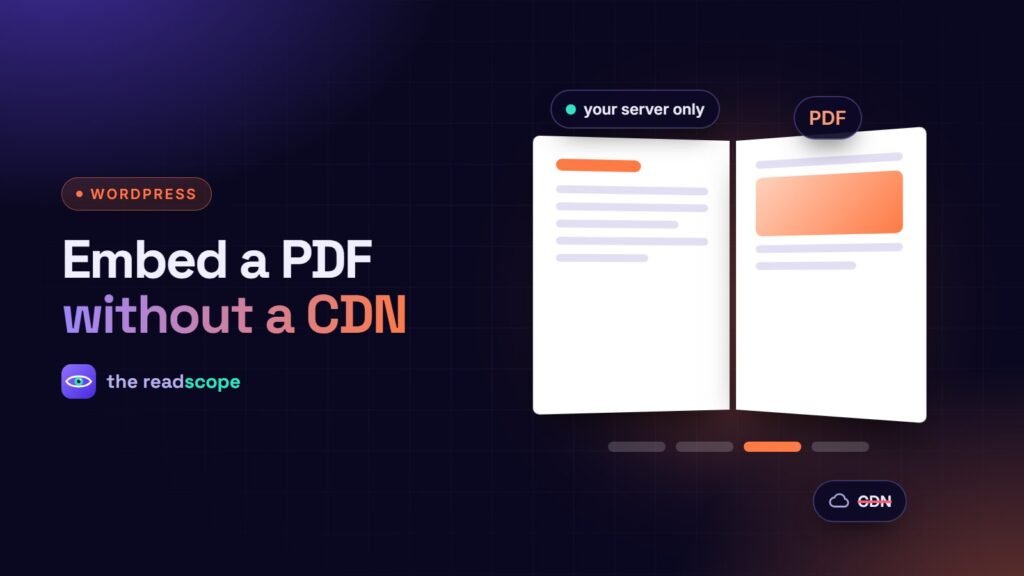
The same renderer, shipped inside your site. Files are served from your own Media Library, assets load only on pages that need them, and caching plugins can treat the scripts like any other file. This is the approach Foliora takes: PDF.js is bundled, rendering happens in the visitor’s browser, and nothing is requested from a CDN.
What to check before you choose
- Where do the scripts come from? Open the network tab and look for external domains.
- Keyboard and screen reader support. Can you reach every toolbar button with Tab, and are they labelled?
- Mobile. Pinch to zoom and swipe to turn pages should work.
- Cache plugins. Some minifiers break PDF.js; the plugin should document exclusions.
- Search. Can the text be found by your site search?
Tips for any method
- Keep PDFs reasonably small; very large files must still be downloaded.
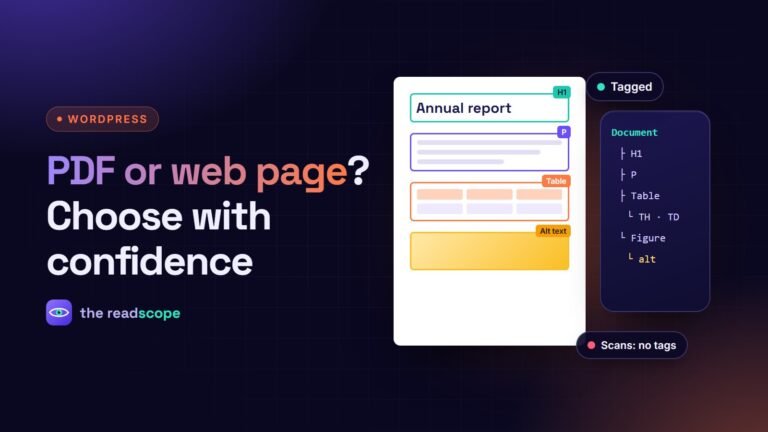
- Export a tagged PDF so screen readers can read it. See Tagged PDFs: how to make documents accessible on your WordPress site.
- Always offer a plain link to the file as a fallback.
- If the PDF is on another domain, make sure it sends CORS headers, or copy it into your Media Library.
Frequently asked questions
What is the simplest way to show a PDF in WordPress?
Add the file in the Media Library and use the Gutenberg File block, or paste the direct PDF link on its own line. WordPress will link to or embed it using the browser's own viewer.
Does a PDF viewer plugin slow down my site?
A well-built one loads scripts only on pages that contain a PDF and renders pages in the visitor's browser. Check that it does not load libraries from third-party servers.
Can search engines read the text in my embedded PDF?
They can usually read the PDF file itself. To make the words findable on your own site, you need the text indexed in WordPress search, which some viewer plugins can do.
Why does my PDF fail to load from another website?
The other server must send CORS headers that allow your site to fetch the file. Files in your own Media Library avoid this problem.